I built software for a construction company with two short prompts to Ninox AI: one to create the foundation and one to add a dashboard. Below you'll find both prompts, ready to copy, along with what Ninox AI created each time. This is the first episode of Built in Ninox, the column where I pick an industry, describe what it needs in plain language, and show you how to build it yourself. We're starting on the job site.
One note before you start: our team keeps improving Ninox AI, so your result may look a little different from mine. The structure will be close, and you can always ask Ninox AI to adjust anything that doesn't fit.
Step 1: build the foundation
I started the way a construction business owner would, between two site visits and without a field list. On the Home screen, I chose Create app with Ninox AI and described what I needed. On an AI-native low-code platform, that's all it takes to get going.
Here's the prompt I used:
I run a construction company and need something to manage my projects, subcontractors, and daily site reports. Please add some sample data so I can see how it works.
Before changing anything, Ninox AI showed me the data model it planned and waited for my approval. It proposed four linked tables: Projects, Subcontractors, Assignments, and Daily Site Reports. The Assignments table is the smart part, because it connects a subcontractor to a project with its own scope of work, dates, and contract amount. One electrician can work on several of my jobs, each with its own terms. After a second approval, Ninox AI filled everything with sample data.
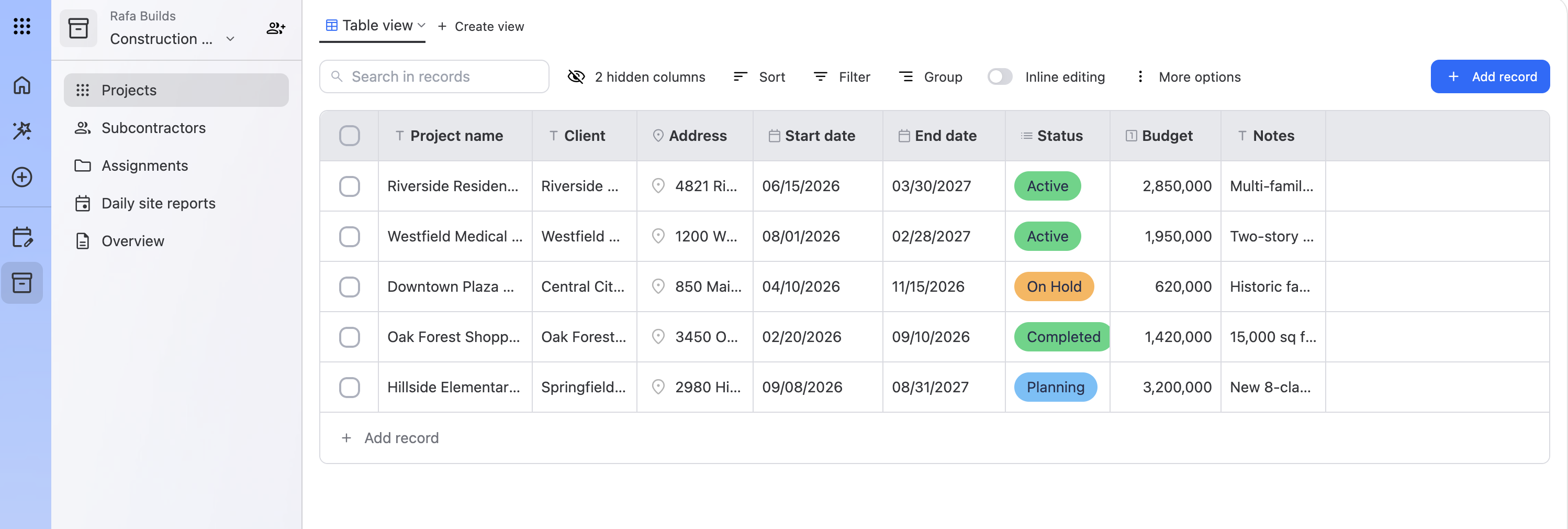
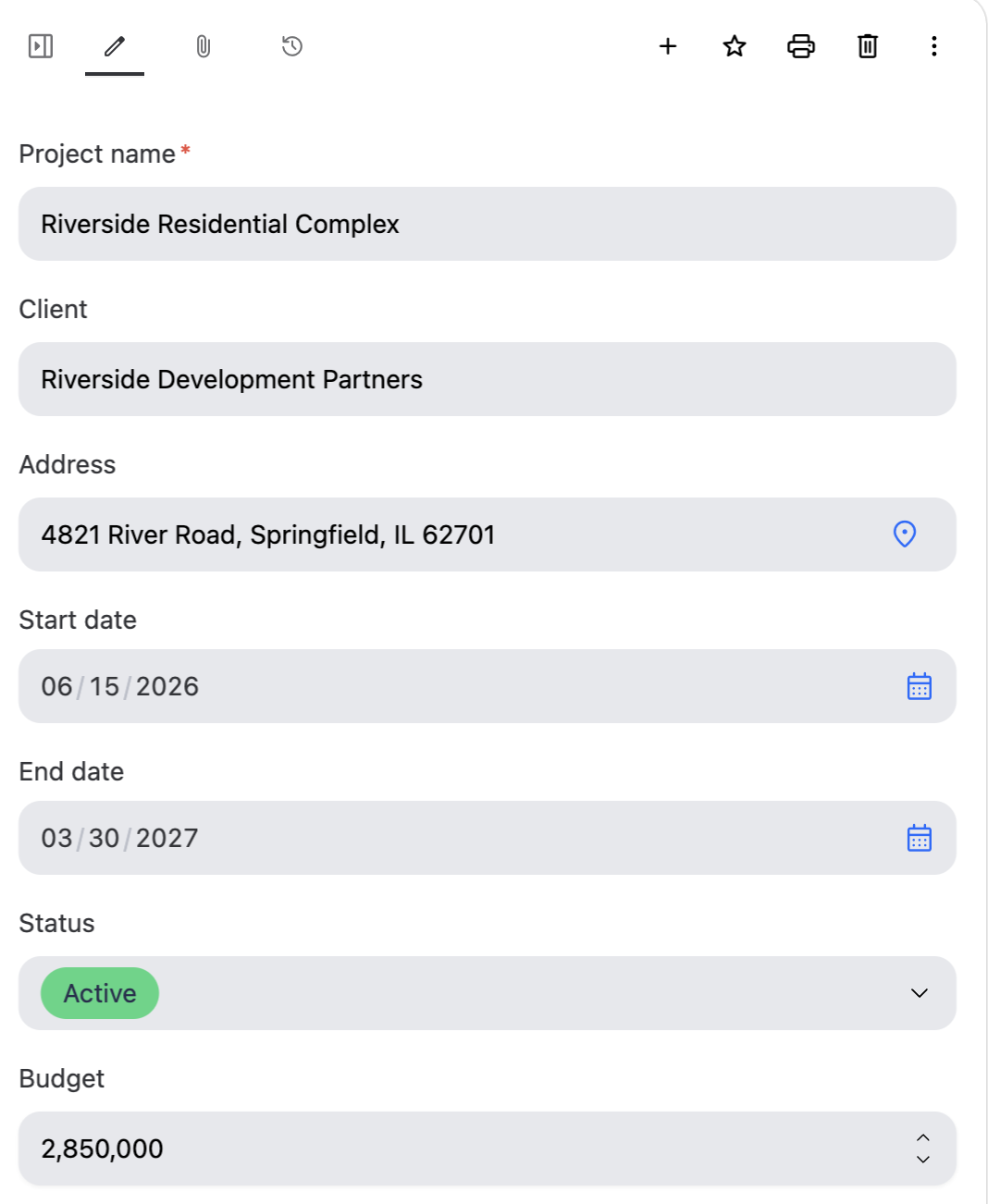
Every table came with search, sorting, filters, and grouping ready to use. When I clicked a project, the full record opened as a form I could edit directly.
Step 2: add a dashboard
Tables are great for working through records, but I wanted to see the state of my business at a glance. So I asked for a dashboard.
Here's the prompt I used:
Add a dashboard that shows my active projects at a glance and the latest site reports, with any safety issues easy to spot.
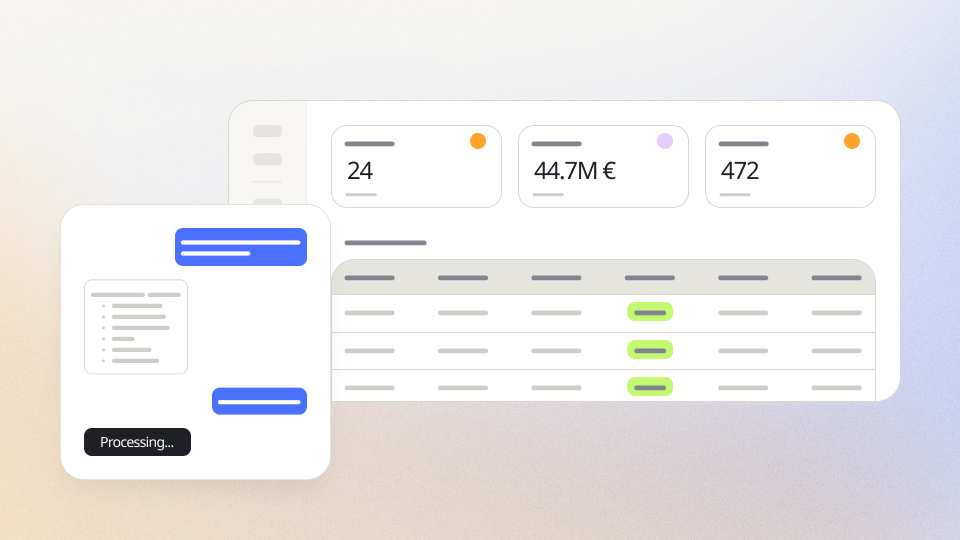
Ninox AI listed every component it planned and, after my approval, built an overview page with two tabs. The Projects tab shows my active projects, their total budget, and the projects on hold, plus a table of active jobs. The Site Reports tab counts every report, shows the average crew size, and highlights safety incidents in red so nobody misses them.
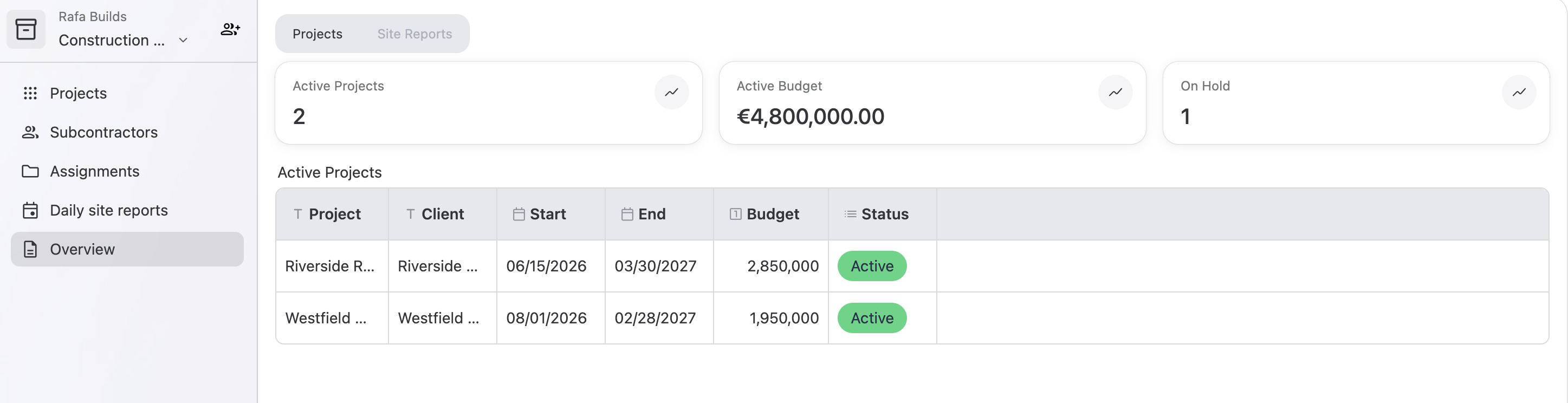
Ninox AI also told me that it had tested the dashboard queries against my data but hadn't checked how the page looks on screen. I took a quick look myself, which I'd recommend you do too.
Prompts to take your construction build further
My two prompts give you a working foundation. From here, you can keep expanding the same build in plain language. These are the prompts I'd try next:
Add a defects table linked to my projects, with a description, severity, status, and due date. Then show the number of open defects on the dashboard.
Add a Kanban board that shows my defects by status, with high severity defects in red.
Add a phases table linked to my projects and show all phases on a Gantt view.
Only let site managers edit the projects they're assigned to.
And because Ninox is a low-code platform, you never need to write a line of script to build what you've seen here, though anyone on your team who knows scripting can add custom logic when a process calls for it.
The best part of starting on a low-code platform is that nothing here is fixed. Every table, field, and view can change as your projects do.
This is how much time it took me to build all of this: 2 minutes, 3 seconds.
Take the next step.
Let's figure it out together.