
I built software for a field service team with two short prompts to Ninox AI: one to create the foundation and one to add a dispatch dashboard. Below you'll find both prompts, ready to copy, along with what Ninox AI created each time. This is the second episode of Built in Ninox, the column where I pick an industry, describe what it needs in plain language, and show you how to build it yourself. This time, we're heading out with the field service team.
One note before you start: our team keeps improving Ninox AI, so your result may look a little different from mine. The structure will be close, and you can always ask Ninox AI to adjust anything that doesn't fit.
Step 1: build the foundation
My first attempt was a single sentence: "I need something to manage my field service team." Ninox AI replied with two quick questions about what to cover and whether to add demo data. The prompt below already includes my answers, so you can skip the questions and get the same result in one go. On an AI-native low-code platform, plain language is all you need.
Here's the prompt to use:
I need something to manage my field service team, with customers, technicians, jobs, and the parts used on each job. Please add some sample data so I can see how it works.
Before changing anything, Ninox AI showed me the data model and waited for my approval. It proposed four linked tables: Customers, Technicians, Jobs, and Parts used. Every job connects to a customer and a technician, and every part connects to a job. So when I open a job, I see who it's for, who's doing it, and what material went into it. After a second approval, Ninox AI filled the tables with 6 customers, 5 technicians, 12 jobs, and 15 parts entries.
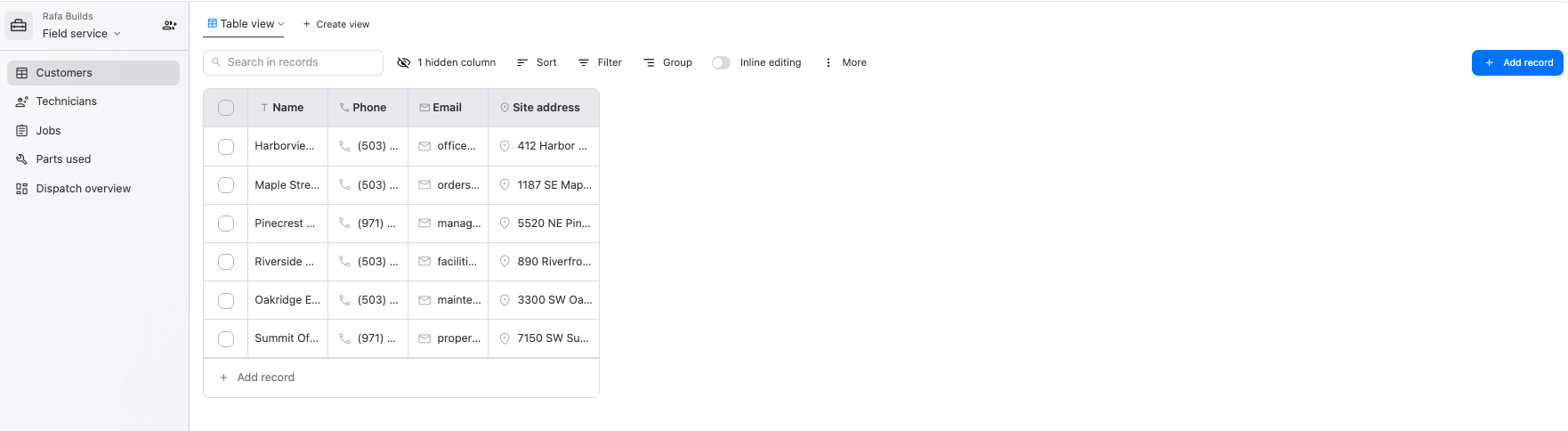
Every table came with search, sorting, filters, and grouping ready to use. The Jobs table is where my office team would spend most of its day. Status and priority show up as colored labels, so urgent jobs stand out the moment the list opens.

Step 2: add a dispatch dashboard
Tables work well for handling individual jobs, but dispatch needs the big picture. So I asked for a dashboard.
Here's the prompt to use:
Add a dispatch dashboard that shows open jobs, jobs in progress, and parts used, with charts of jobs by status and by priority and a calendar of the job schedule.
Ninox AI listed every component it planned and built the page after my approval. The Dispatch overview shows three metrics at the top, a status board and a priority chart in the middle, and the job calendar for the month below.
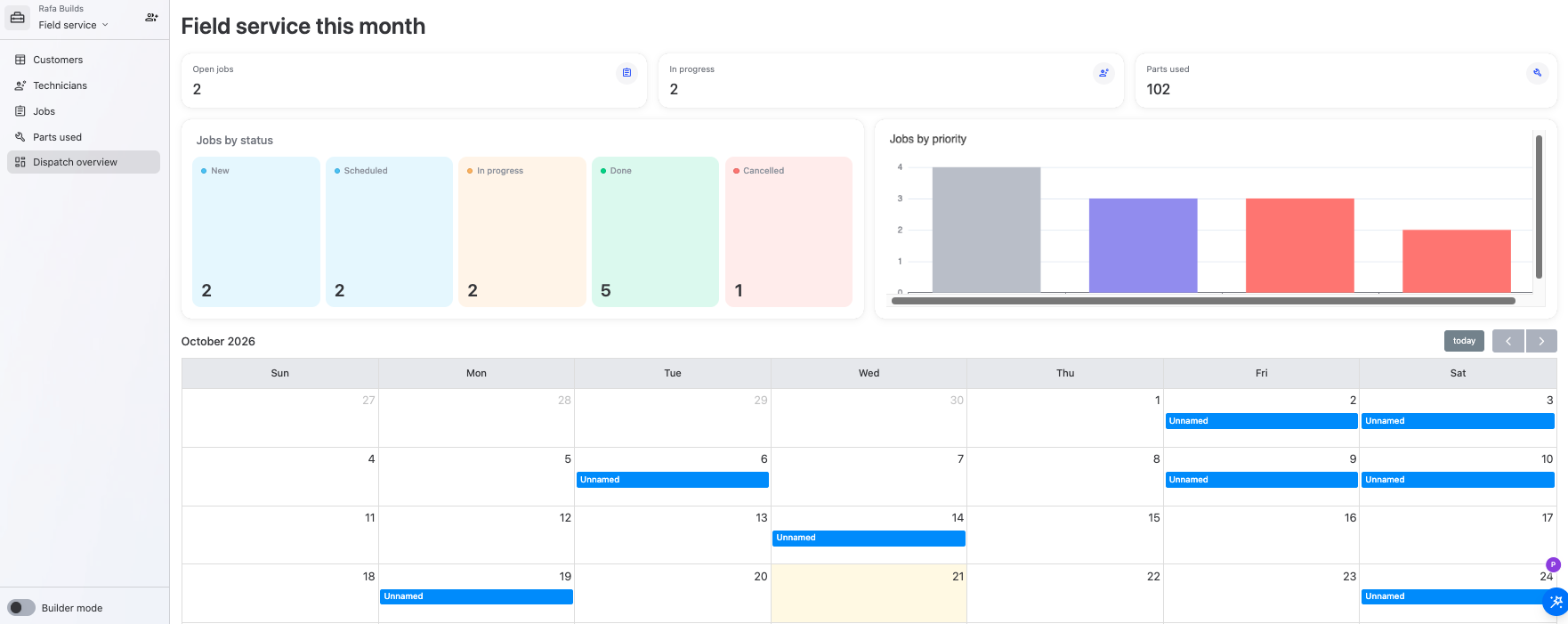
Two details from Ninox AI's summary are worth knowing. It had tested the dashboard queries but hadn't checked how the page looks on screen, so I took a quick look myself. It also pointed out that the Open jobs card counts only jobs with the status New. That's the kind of transparency that helps you trust a number before your team relies on it, and you'll find the prompt to change it below.
One setting worth knowing
Building and data access are two separate decisions in Ninox. In the workspace settings, one switch controls whether Ninox AI can read, add, change, and delete records.
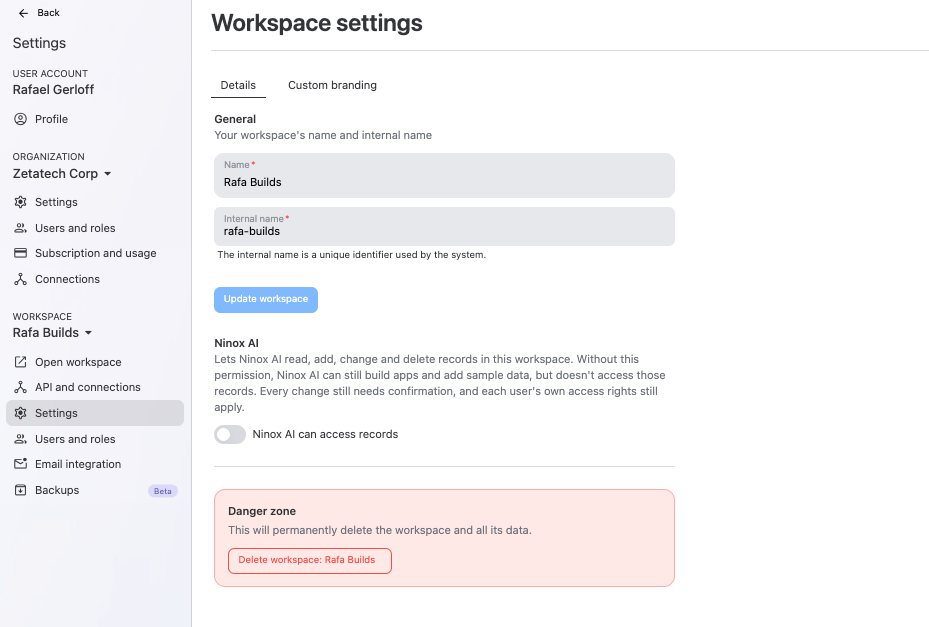
With the switch off, Ninox AI can still build software and add sample data, but it doesn't access your records. With the switch on, every change still needs your confirmation, and each user's own access rights still apply.
Prompts to take your field service build further
My two prompts give you a working foundation for dispatch. From here, you can keep expanding the same build in plain language. These are the prompts I'd try next:
Show the job title on each calendar entry.
Count scheduled jobs as open jobs on the dashboard too.
Add a signature field to jobs so customers can sign off on completed work.
Only let technicians see the jobs assigned to them.
Add a Kanban board of jobs by status so I can plan the week.
Connectors can also bring customer and invoice data from Lexware Office, sevdesk, or Sage Accounting into Ninox.
And because Ninox is a low-code platform, you never need to write a line of script to build what you've seen here, though anyone on your team who knows scripting can add custom logic when a process calls for it.
The best part of starting on a low-code platform is that nothing here is fixed. Every table, field, and view can change as your service business grows.
This is how much time it took me to build all of this: 2 minutes, 53 seconds.
Take the next step.
Let's figure it out together.